Costco Check report support
The Feature Pack includes two check formats that work with the Costco check layouts.
- Preprinted check stock is available to order from Costco Wholesale. Here is a link to the out-of-the-box Costco check: Costco Laser Multi-Purpose Check Middle
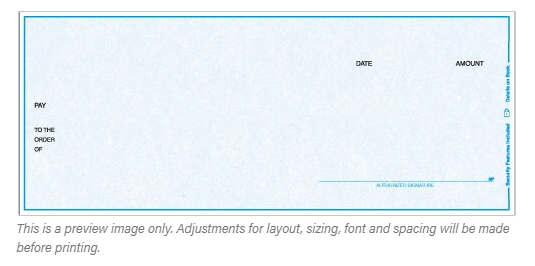
- The 2nd check format is the pre-printed format.
Set up Check Format
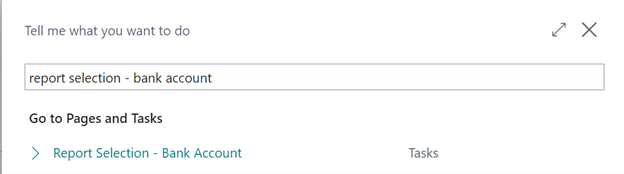
From the Search box, search for Report Selection - Bank Account and select the related link.
From the Usage field drop-down, select Check.
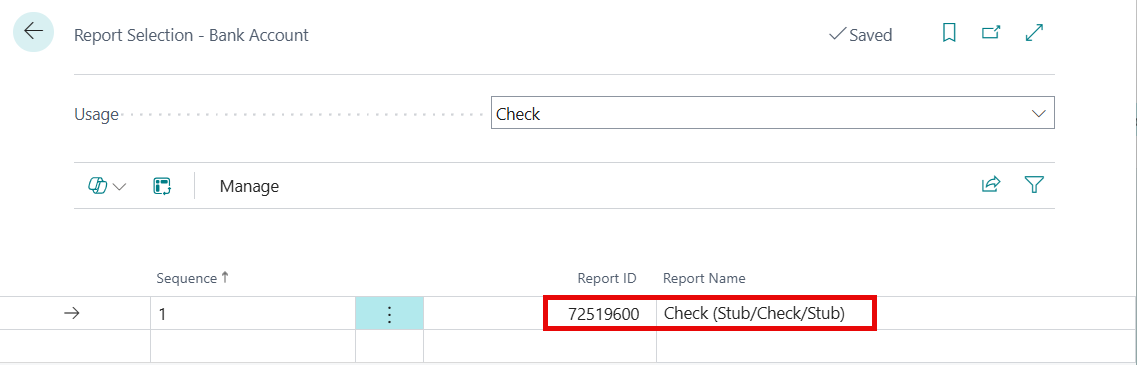
Enter the Report Number for the Costco check format:
- 72519600 (previously 87501) Check (Stub/Check/Stub)
Report Layouts
To set which report is the default version to use when printing checks, use the following steps:
- Open "Checks" (example, from the Payment Journal).
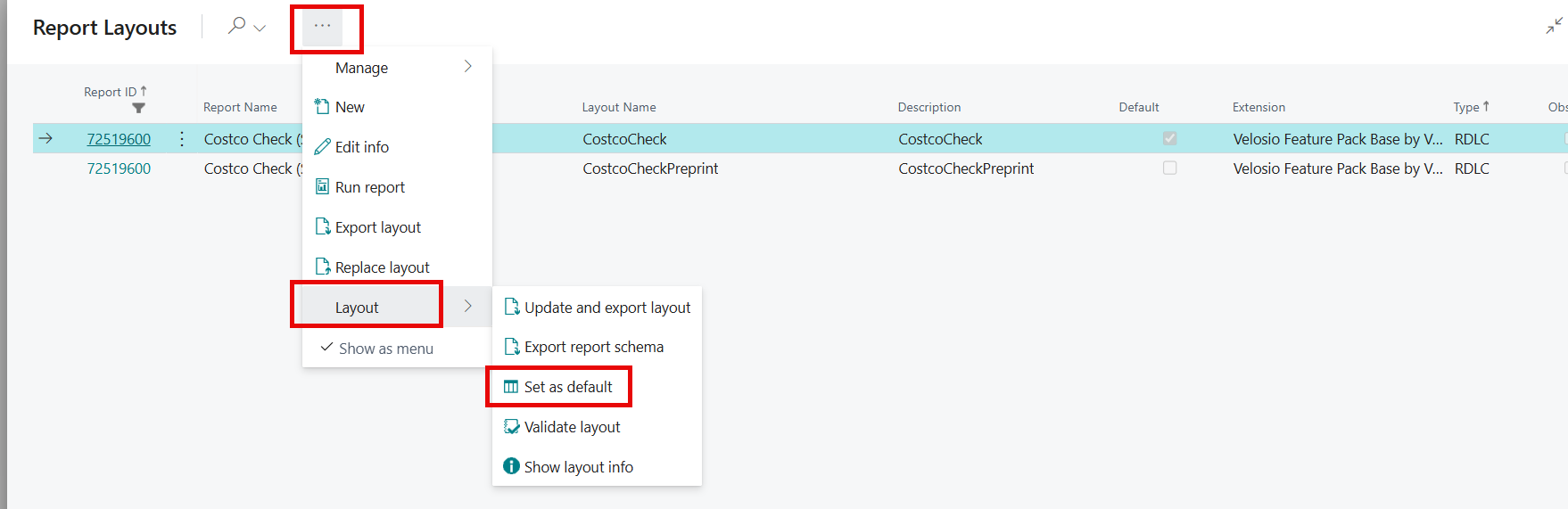
- Click the ellipse for the Report Layout field.
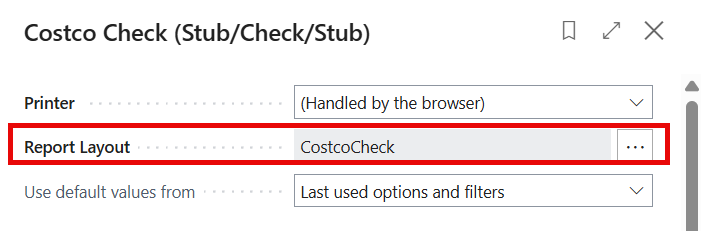
Highlight which report layout to set as the default:
- Costco Check (for blank check report).
- CostcoCheckPreprint (for the pre-printed Costco checks). Note that adding a Signature file is not supported for this format. For more information on adding a Signature to the Costco check (blank check), see: Add Signature to Checks
Select ellipse, then Layout > Set as default.
Click OK to the message.
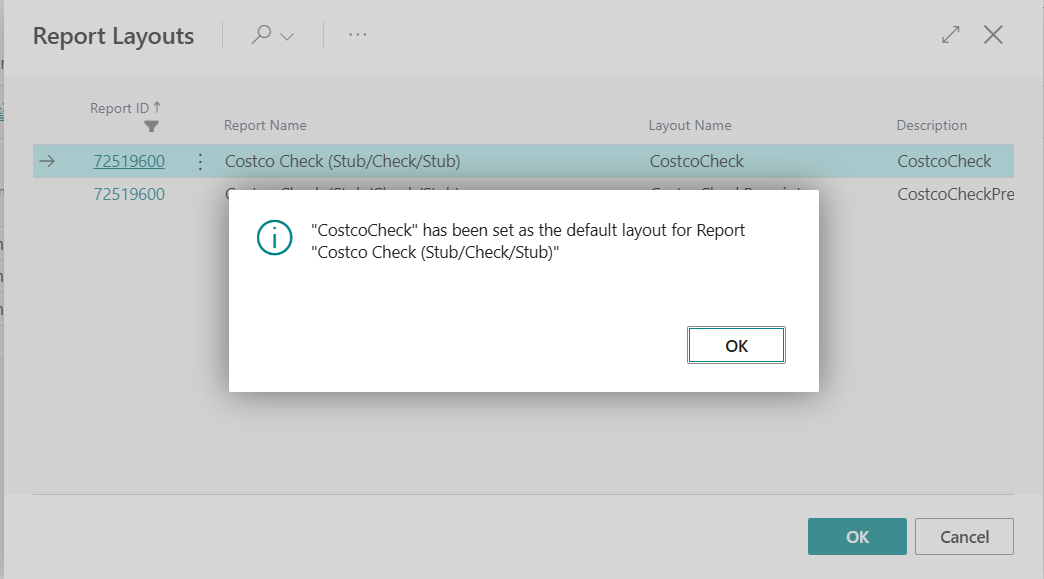
Click OK and close the page.
Reopen the page and note that the Default checkbox is now selected for the report format chosen as default.
